What shoppers see: the engraving field and live preview on your Wix product page
Open the product on your live Wix site. Under "Personalise your product", shoppers type into the fields you set up, see how many characters are left, and watch their text appear on your product photo in the font and colour you chose. Required fields must be filled before Add to cart works.
Published
What do you need before you start?
- Engraving turned on for the product (see Part 2).
- Your Wix site published.
Step by step
Step 1 — Open the product page
Open the product on your site. Below the price and quantity you see "Personalise your product" with a preview of the product photo. While the engraving field loads, the standard Add to Cart button stays hidden, so nobody can order without text.
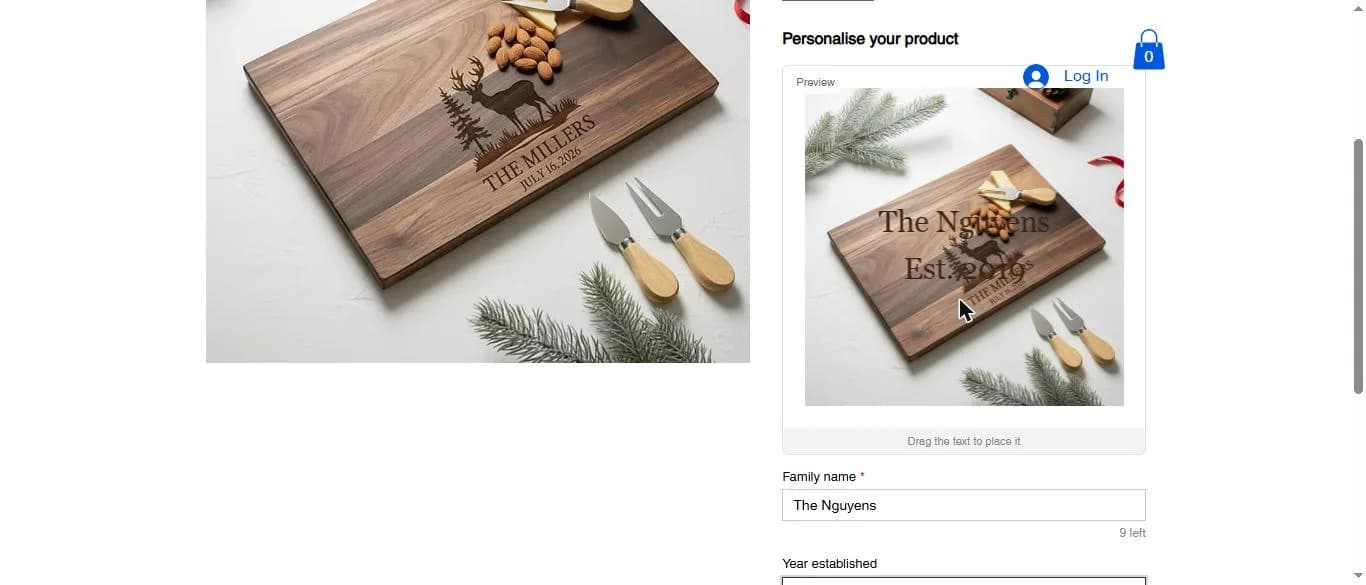
Expected result: The Preview box shows your product photo with the sample text in the engraving area.
Step 2 — Type the engraving text
Type into each field. The counter under the field shows how many characters are left, and the preview updates as you type.
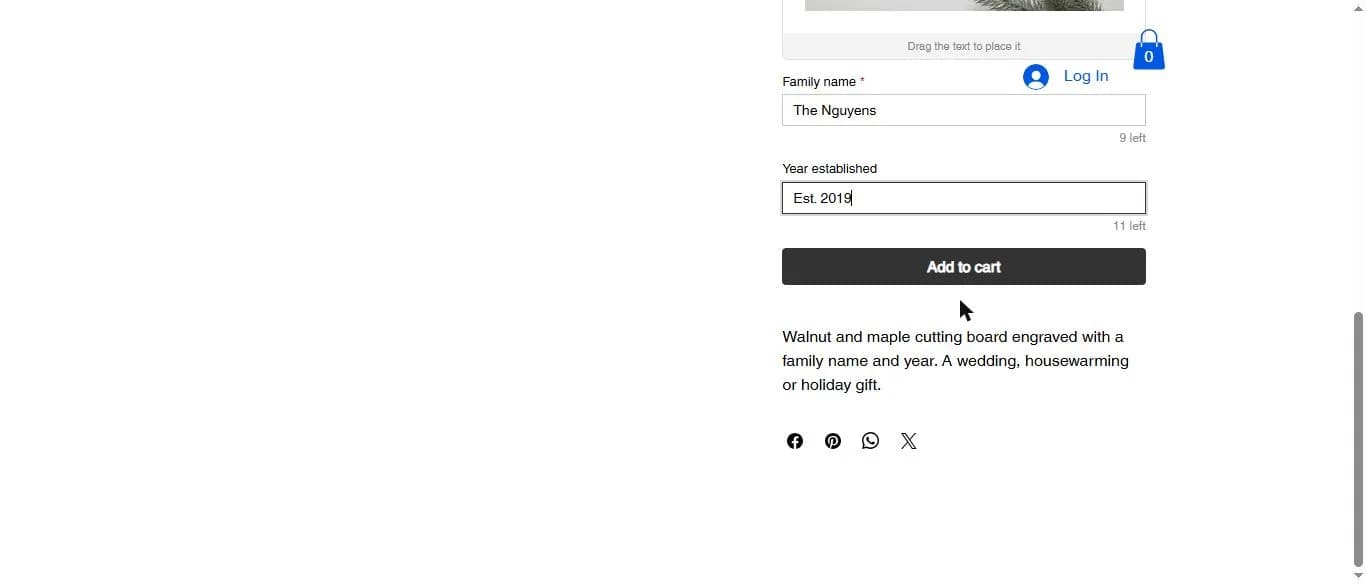
Expected result: The text appears on the photo, and "Add to cart" is ready below the fields.
Step 3 — Check the preview on dark materials
On dark wood and walnut the preview uses light text, so shoppers can read it the way it will look once engraved.
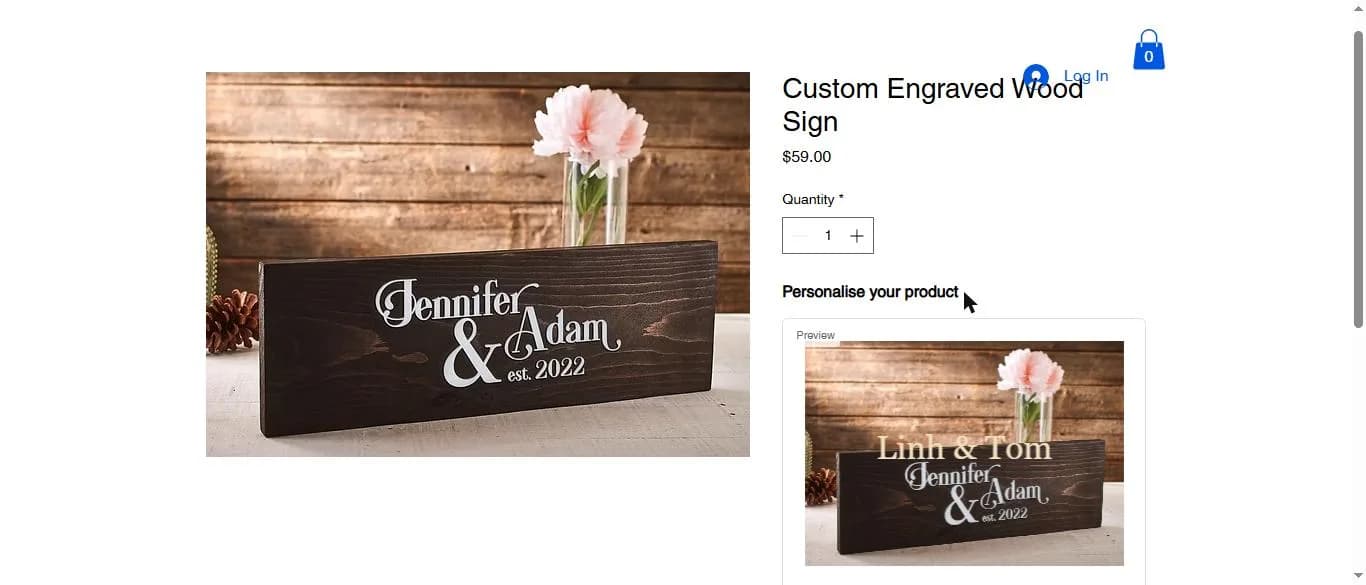
Expected result: The engraving text stands out on the product photo.
Step 4 — Required fields stop empty orders
If a required field is empty and the shopper clicks Add to cart, the field is marked Required and nothing is added.
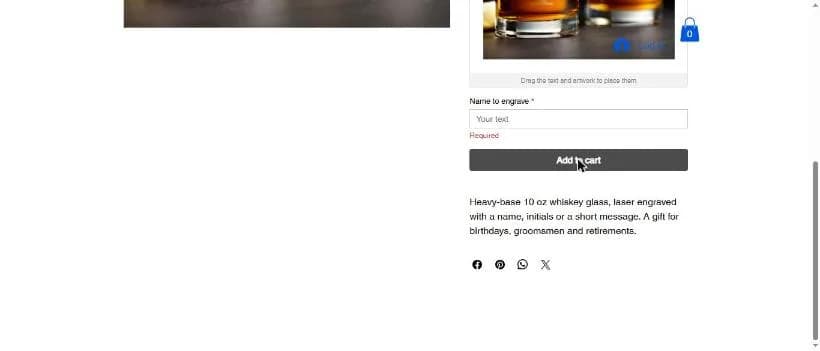
Expected result: The product goes to the cart only with its engraving text.
What if something does not work?
- I do not see "Personalise your product".
- Make sure the product shows ENGRAVING ON in the app, then reload the product page; the field can take a few seconds to load.
- Something else looks wrong on the product page.
- Email [email protected] with your Wix site name and the product name, and we will check the setup with you.
Where can you get help?
Email [email protected] with your Wix site name and the step where you got stuck, and attach a screenshot if you can.