Where to find the engraving text in your Wix cart, checkout and orders
The text a shopper types is saved with the order line in Wix. It shows under each product in the cart, at checkout, on the thank-you page and in the order in Wix Sales › Orders. In AI Engraving Text, open Orders and click the order to see every line with its engraving text.
Published
What do you need before you start?
- Engraving turned on for at least one product (Part 2).
- An order from your store, or a test order.
Step by step
Step 1 — The cart shows the text
After Add to cart, each product in the cart lists its fields, for example "Family name: The Nguyens".
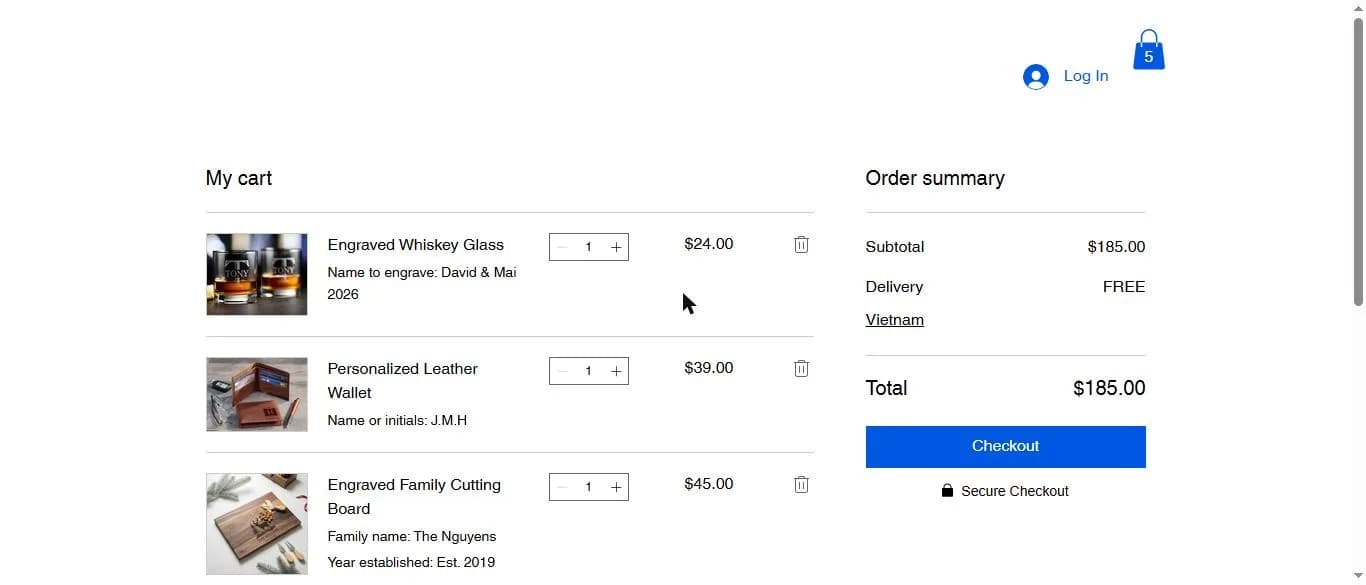
Expected result: Every engraved product shows the label and the text the shopper typed.
Step 2 — The thank-you page repeats it
After checkout, the thank-you page lists the order number and the engraving text for each product, so the shopper can check it.
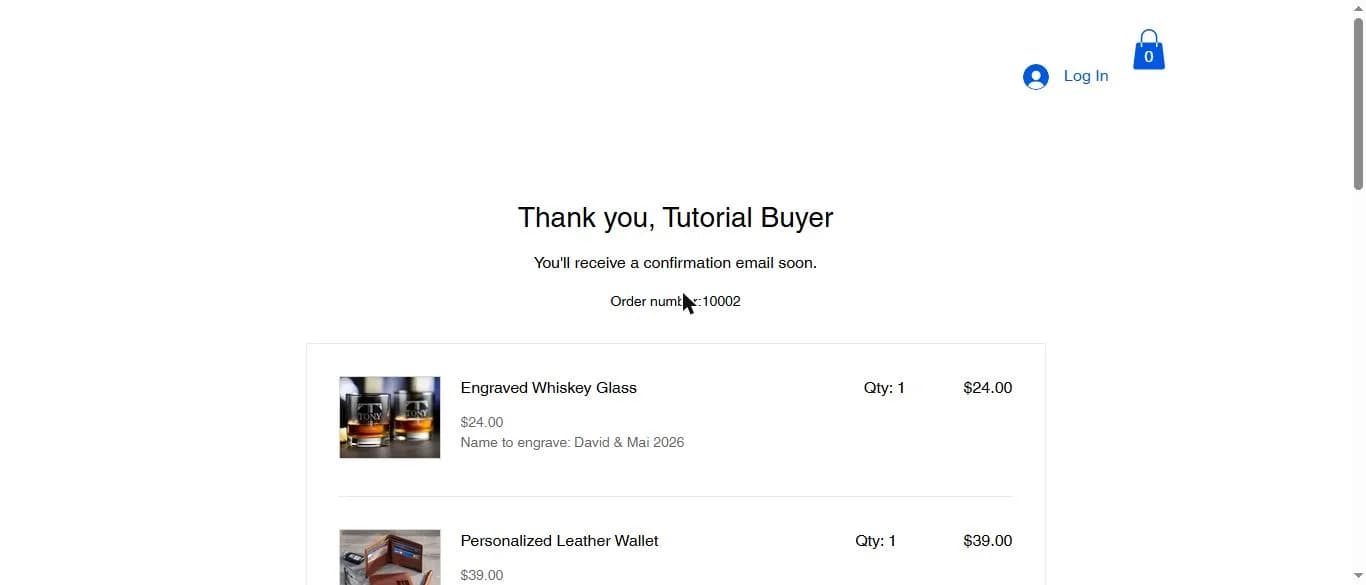
Expected result: The order number and every engraving text are shown.
Step 3 — Open the order in Wix
In your Wix dashboard, go to Sales › Orders and open the order. The engraving text is under each product line.
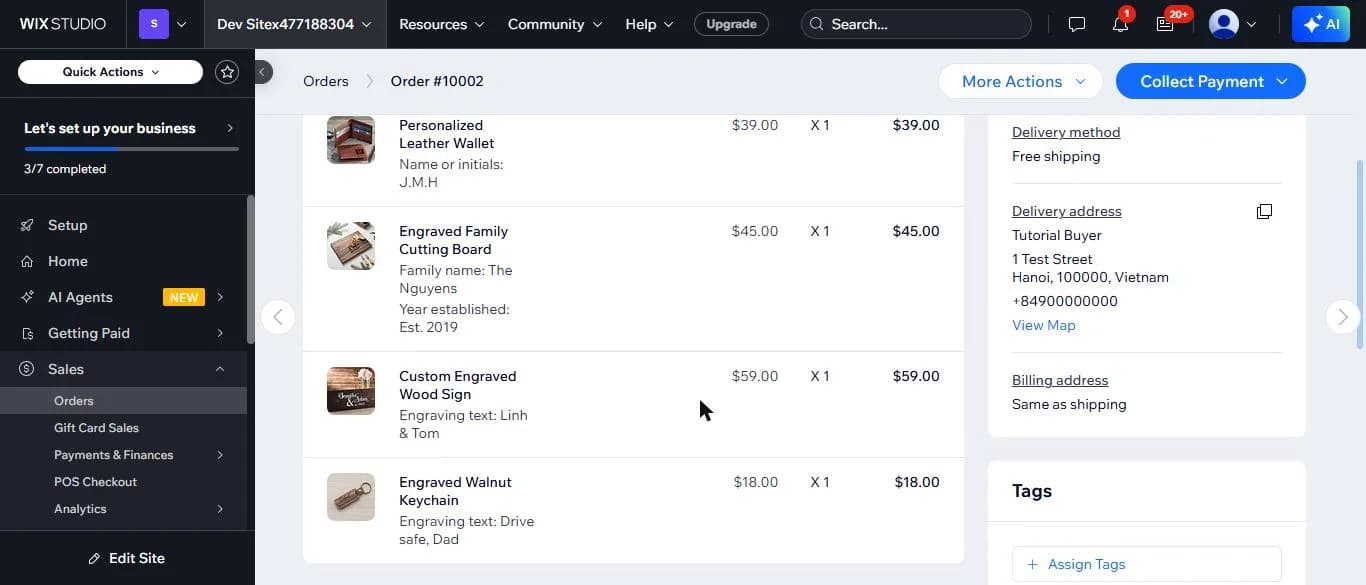
Expected result: You can read what to engrave without leaving Wix.
Step 4 — See the order in the app
In AI Engraving Text, open Orders and click the order. A window lists each product with its engraving text.
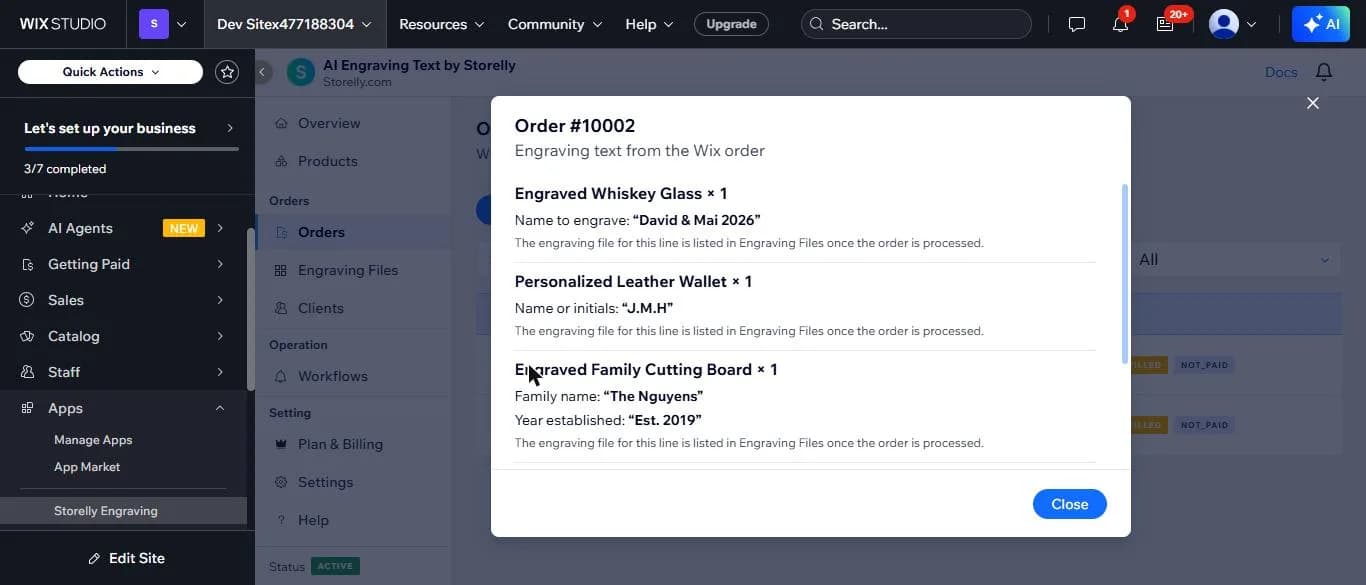
Expected result: Each line shows the product, the quantity and the text in quotes.
What if something does not work?
- An order has no engraving text.
- Check that the product had engraving on when the order was placed. Orders placed before you turned it on have no text.
- I need help with an order.
- Email [email protected] with your Wix site name and the product name, and we will check the setup with you.
Where can you get help?
Email [email protected] with your Wix site name and the step where you got stuck, and attach a screenshot if you can.