How to download engraving files from Wix: SVG, PDF and JPEG at 300 dpi
In AI Engraving Text, open Engraving Files. Each order line has Prepare SVG, Prepare PDF and Prepare JPEG 300 dpi. Click Prepare, then click the Save link that appears to download the file. SVG and PDF are at the real engraving size in millimetres; the JPEG is 300 dpi for your laser or engraving software.
Published
What do you need before you start?
- An order with engraving text (Part 4).
Step by step
Step 1 — Open Engraving Files
Click Engraving Files in the app menu. Each order line shows the product name, the engraving text, the Wix order number and the date.
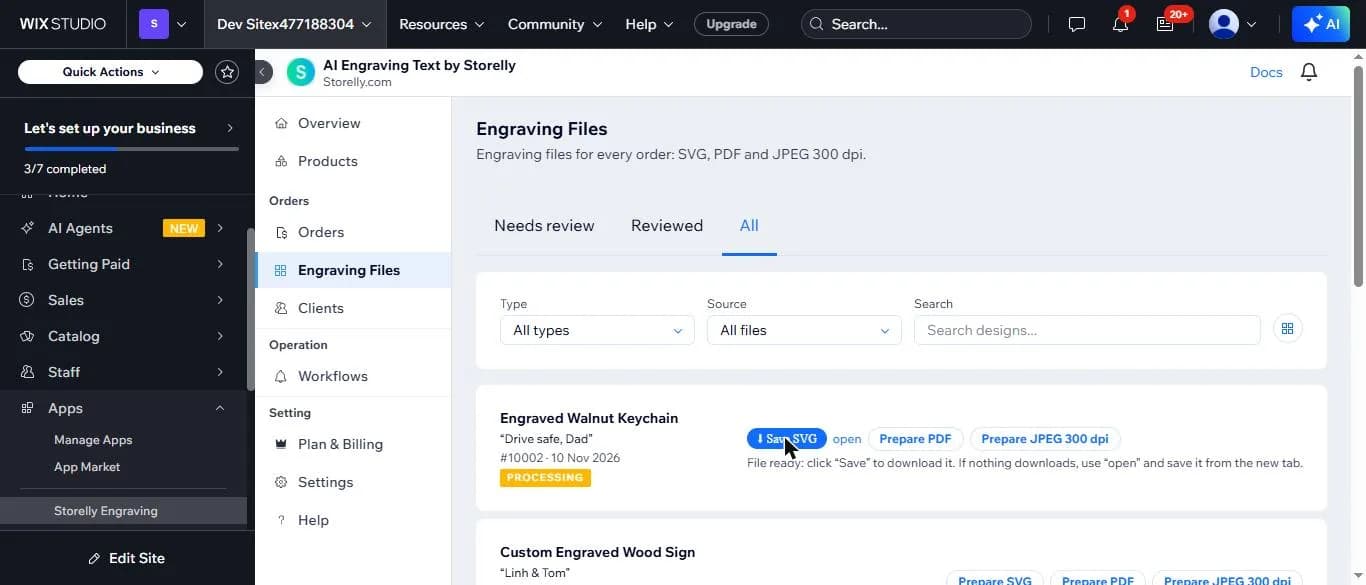
Expected result: You see one row per engraved product, with three Prepare buttons.
Step 2 — Prepare and save the file
Click Prepare SVG, Prepare PDF or Prepare JPEG 300 dpi. When the file is ready the button turns into "Save …". Click it to download. If nothing downloads, click "open" next to it and save the file from the new tab.
Expected result: The file lands in your browser's download folder, named after the order line.
Step 3 — Check the design before you engrave
Click the product name and then "Open full details". The page shows a preview of the engraving, the product, the engraving text and the number of text lines, with the same three file buttons.
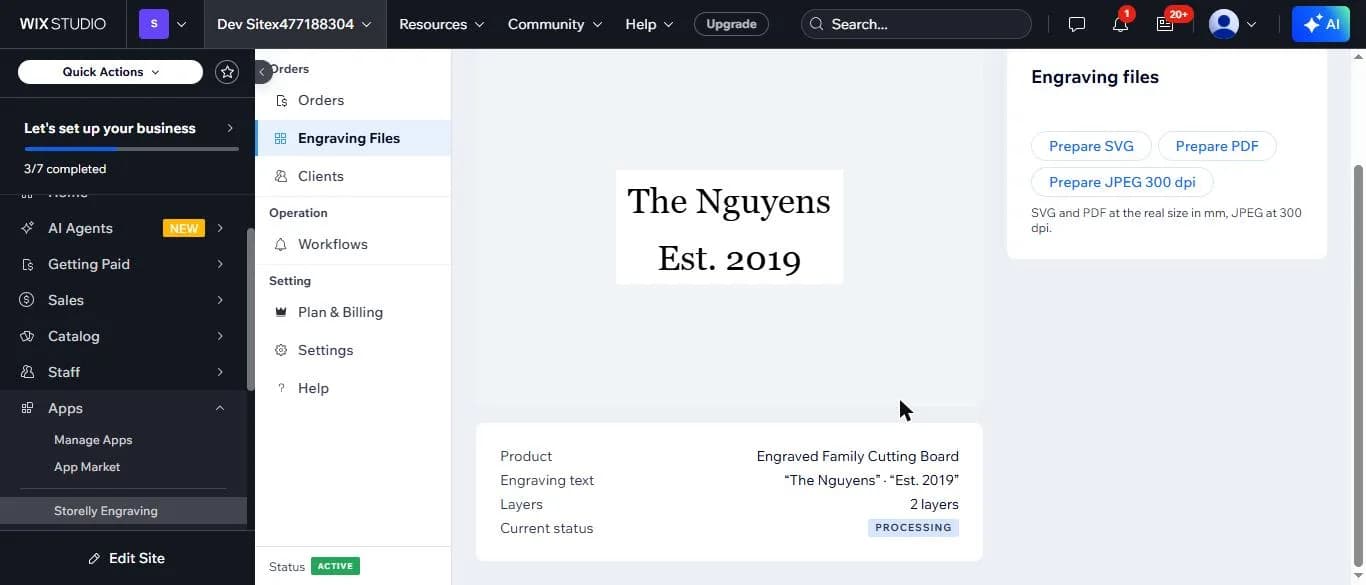
Expected result: The preview and the text match what the shopper typed.
Step 4 — Use the file in your engraving software
Open the file in your laser or engraving software. A 60 × 30 mm engraving area gives an SVG and a PDF of 60 × 30 mm and a JPEG of 709 × 354 pixels at 300 dpi.

Expected result: The text, the size in mm and the resolution match the product setup.
What if something does not work?
- Clicking Save downloads nothing.
- Click "open" next to the Save link and save the file from the new tab. Also check where your browser saves downloads.
- The PDF says it is still being made.
- Wait a minute and click Prepare PDF again.
- The file does not look right.
- Email [email protected] with your Wix site name and the product name, and we will check the setup with you.
Where can you get help?
Email [email protected] with your Wix site name and the step where you got stuck, and attach a screenshot if you can.