Know what is on the shelf at every location.
Storelly tracks stock separately for each shop and warehouse, moves it between them with a clear trail, and shows stock and sales per location, all in one account.
Free plan · No credit card required
Stock you can trust, location by location.
Everything below is in Storelly today, in the same account as your point of sale.
Stock counted at each location
Every product has its own quantity at every shop and warehouse. A sale takes stock from the location it was made at, and opening stock is set per location.
Transfers with a trail
Move stock between locations as Pending, In transit, then Completed. Stock stays at the source until the transfer is completed, and Storelly refuses to complete one the source cannot cover.
Write-offs with a reason
Record breakage, expiry, theft or loss as a normal or abnormal write-off. You cannot write off more than is in stock at that location.
Reports by location
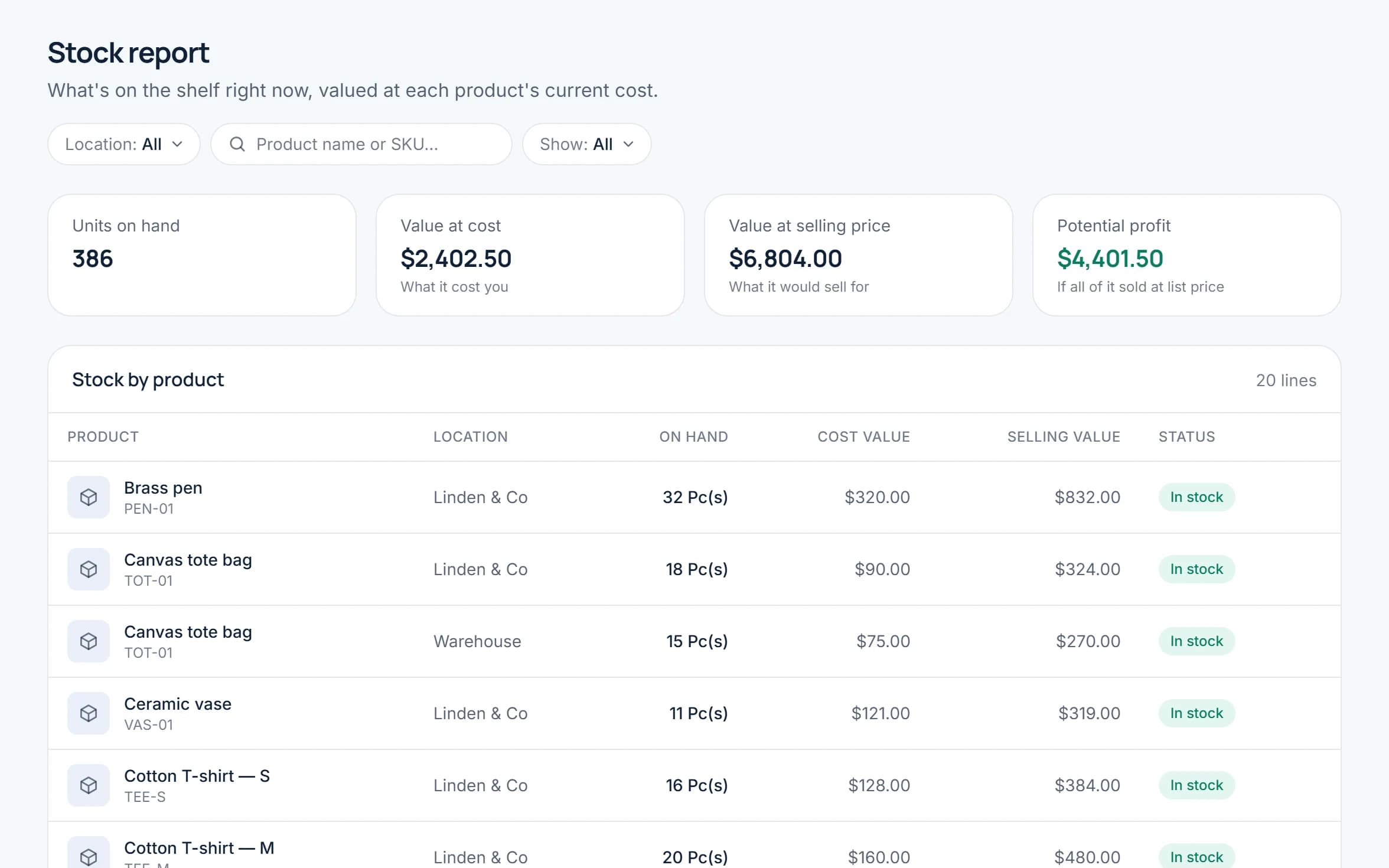
The stock report shows units on hand with value at cost and at selling price, and can be filtered to one location. Sales and expense reports can be grouped by location.
Staff see their own shop
Give each role access to all locations or only the ones you choose, so a cashier at one shop works with that shop and not the others.
Your online store is a location too
With the Storelly ERP plugin, your WooCommerce store is linked to one location, so online orders reduce that location’s stock. Available on selected paid plans.
Set up in three steps.
Nothing to install and no special hardware: it runs in your browser.
Add your locations
In Settings → Locations, add each shop and warehouse. Your plan sets how many locations you can have; the pricing page lists it for every plan.
Put the stock where it is
Add products with opening stock at a location, or import them from a CSV file with an opening stock location for each product. Receive more from suppliers with a purchase at the right location.
Run it day to day
Sell at each counter, transfer stock when a shop runs low, write off losses, and check the stock report by location whenever you want the truth.
Questions about stock across locations.
Can't find what you're looking for? Reach out and our team will walk you through it.
It depends on your plan. Every plan lists how many locations it includes on the pricing page, and you can upgrade from Settings → Plan in your dashboard when you need more.
Yes. Create a stock transfer from one location to another and move it through Pending, In transit and Completed. The stock leaves the source and arrives at the destination when you mark the transfer completed.
Storelly will not complete a transfer that the source location cannot cover. A write-off is held to the same rule: you cannot write off more than is in stock at that location.
Set opening stock when you add or import a product, receive stock from a supplier by recording a purchase at that location, or move it from another location with a transfer.
Yes. The stock report lists units on hand with their value at cost and at selling price, and you can filter it to a single location.
Yes. Roles can be given access to all locations or only to the locations you pick, so staff work with the shop they are at.
You link the store to one of your locations in the Storelly ERP plugin, and online orders then reduce that location’s stock. The WooCommerce connection is part of selected paid plans.
Yes. Every new account starts on the free plan with no credit card, so you can set up your first location and look around. The free plan has limits on products, invoices and locations that the pricing page spells out.
Start running your shop on Storelly.
Add your products and record your first sale today. Every new shop starts on the free plan.
Free plan · No credit card required