Get started with AI Engraving Text on Wix: the app at a glance
After you install AI Engraving Text from the Wix App Market, open it from Apps in your Wix dashboard. The Overview page shows a four-step checklist for your first engraved product, and the Products page lists every Wix product with an Engraving on, needs setup or off badge, so you always know what shoppers can personalise.
Published
What do you need before you start?
- A Wix site with Wix Stores and at least one product.
- AI Engraving Text installed from the Wix App Market. The store connects by itself, no extra account is needed.
Step by step
Step 1 — Open the app and read the checklist
In your Wix dashboard, go to Apps and click Storelly Engraving. The Overview page opens. A banner tells you how many of your Wix products have engraving on, and below it is "Set up your first engraved product".
The checklist has four steps: pick a product, turn engraving on, see the engraving field on your store, and place a test order to download the file. The menu on the left takes you to Products, Orders, Engraving Files and Help.
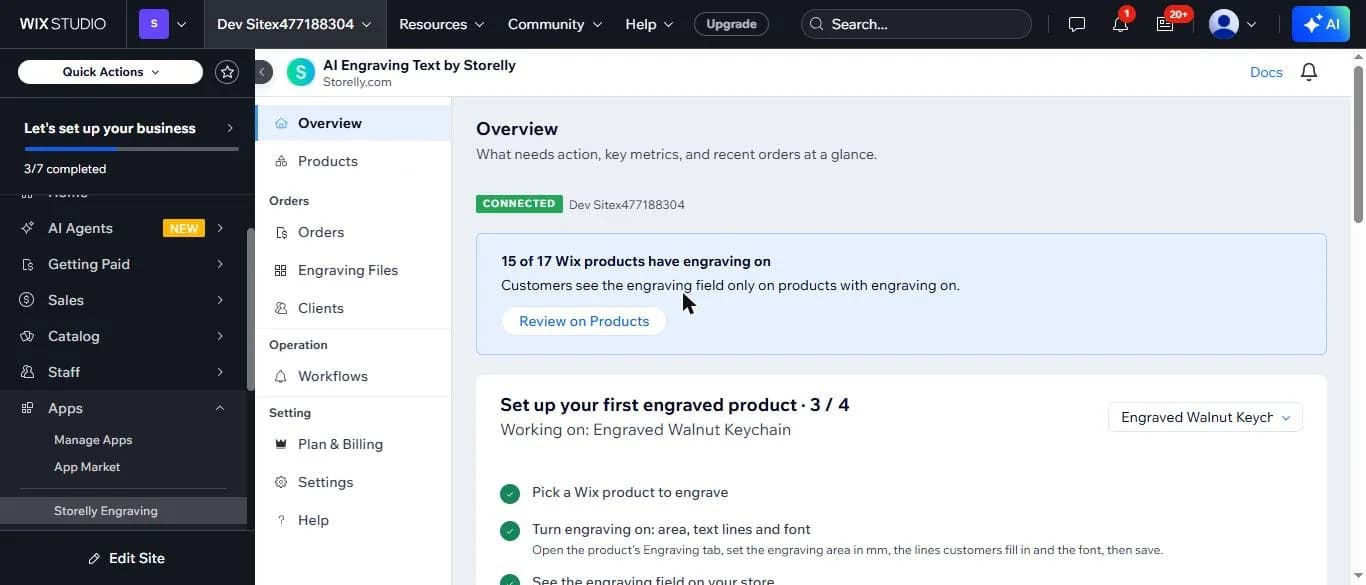
Expected result: You see the checklist with the steps you have already done ticked, and the product you are working on.
Step 2 — Check which products have engraving on
Click Products. Every product from your Wix store is listed with one badge: "Engraving on" (green), "Engraving: needs setup" (red) or "Engraving off". Use the search box to find a product by name.
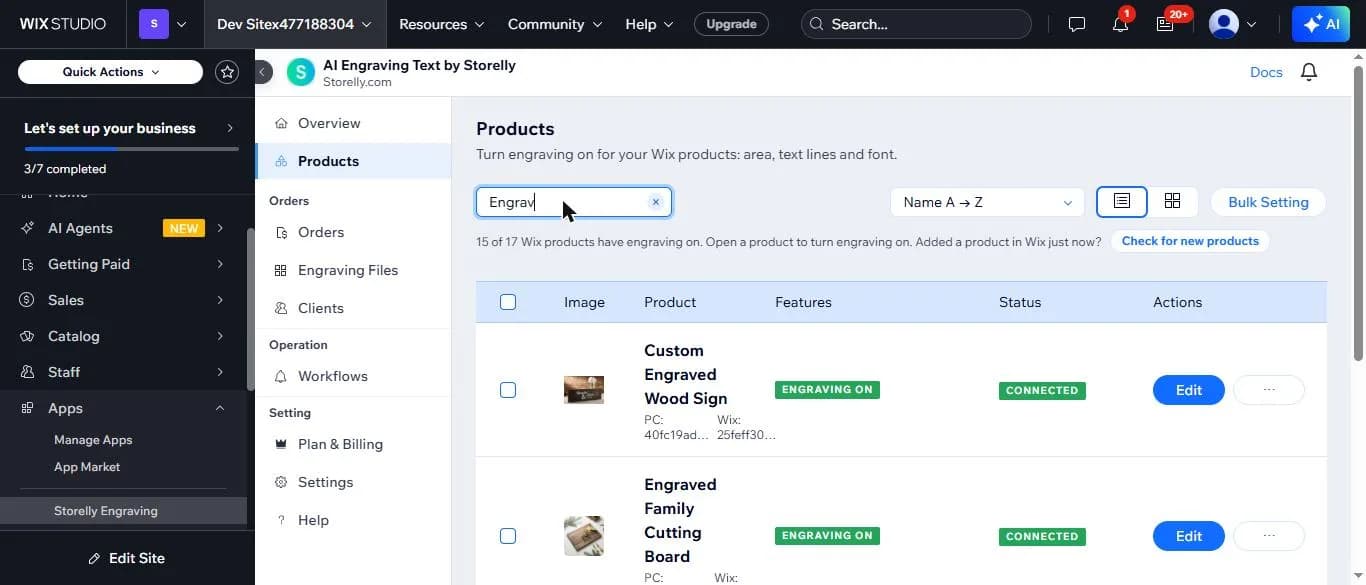
Expected result: Products you have set up show a green ENGRAVING ON badge and the status CONNECTED.
What if something does not work?
- A product I just added in Wix is not in the list.
- Click "Check for new products" above the list. The app reads your Wix catalog again.
- I need help with the setup.
- Email [email protected] with your Wix site name and the product name, and we will check the setup with you.
Where can you get help?
Email [email protected] with your Wix site name and the step where you got stuck, and attach a screenshot if you can.